SB-01 · Storage Basics
How to check free space on your Mac
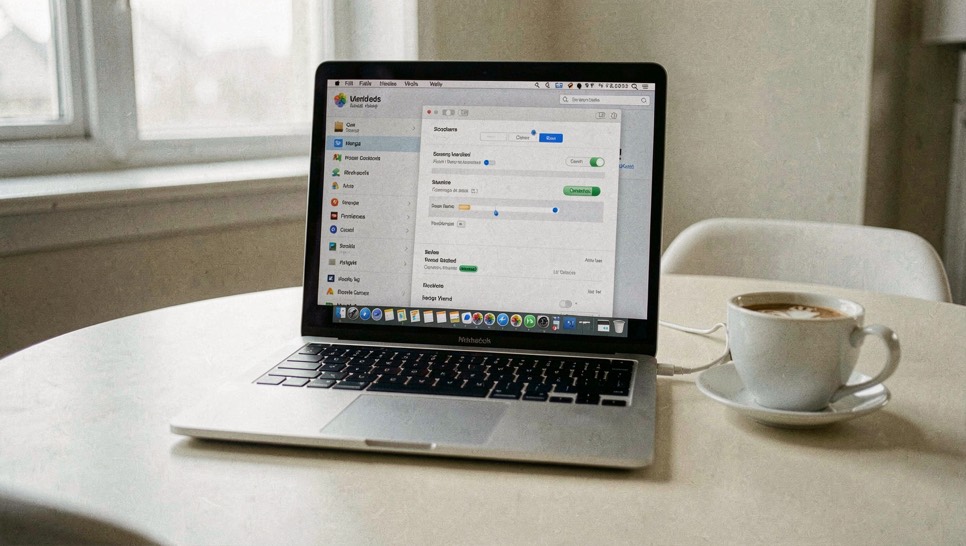
Before anything gets deleted from a full Mac, the same small step has to happen first: a measurement. A drive that looks full may hold one runaway folder, or nothing you would recognize as yours at all. The four methods below answer slightly different questions, and knowing which one you ran explains most confusion about where the space went.
The quick answer in System Settings
Open the Apple menu, choose About This Mac, then More Details, Storage. The bar that appears sorts capacity into categories such as Applications, Documents and System Data. This view is the friendliest, but it summarizes; it does not tell you which folder in Documents grew. Treat the colored bands as a table of contents rather than a diagnosis. The grey System Data band is the one row that will not open at all; finding out what System Data is holding takes Terminal and a few Library folders instead.
One detail confuses everyone eventually: the figure shown as available may be larger than the space you can actually spend. That gap is mostly purgeable space, capacity the system believes it could reclaim on demand from caches and snapshots. Our explanation of what purgeable space really promises covers why Finder will not always move that number when you delete files.
Finder and Get Info
Select any volume icon in Finder and press Command-I. The Info window reports capacity, available space and used space as three plain numbers, refreshed each time Finder recalculates. For a folder instead of a volume, the same panel computes the entire tree underneath it, which makes Get Info the fastest way to compare two suspects such as an old project directory against a video library.
Disk Utility for the volume itself
Disk Utility shows volumes rather than folders, including the hidden system volumes APFS creates alongside your data. Its numbers matter when you need to know whether the data volume or the sealed system volume holds the growth. What Disk Utility will not do is rank your personal folders for you; that job belongs to a deliberate search for large files.
Terminal, one line, no debate
df -h /System/Volumes/Data prints the exact used and available figures for the data volume in
human-readable units. When the Settings bar and Finder seem to disagree, this line settles it, because it reads
the filesystem directly rather than through storage heuristics. The companion command
du answers the folder-size half of the question,
so between them the pair covers volume and tree.
Writing the number down
A measurement you cannot reproduce later is only a mood. Note the free-space figure and the date before any cleanup session, then re-run the same method afterwards so the comparison is honest. The field kit's ledger worksheet exists for exactly this habit; both sheets travel with the guide to the desk's download page, and they cost nothing to print.
Which method belongs to whom
If you only ever run one of these checks, take the Settings view for orientation plus the Get Info panel for folders. Keep Terminal in reserve for arguments. The rest of this desk assumes you can produce these numbers on demand, because every cleanup decision downstream depends on trusting the measurement you started with.
A quiet test for new machines
Owners of recent Macs can watch nearly all of this within one month of ordinary use, which doubles as an orientation exercise. Note the free figure the day a machine arrives. Stream one long film, run one backup cycle, install nothing else deliberately, and note the figure again at week's end. The delta between those notes is your machine's personal idleness signature: caches replenishing, snapshots cycling, swap settling. Once recorded on the worksheet from the field kit, that signature becomes the reference every later scare gets compared against, which is exactly how this desk prefers to meet each new macOS release: with a baseline instead of a headline.
A note on units before anyone argues
Two unit systems compete across these tools and the arguments they start are avoidable. Finder and the Settings pane report in decimal gigabytes, the marketing scale drive boxes use; Terminal's df, with its -h flag, reports powers of 1024. The same volume therefore shows different numbers across windows that appear to disagree about facts. Neither is lying; they measure with different rulers. Pick one ruler for your worksheet, note which it is beside every entry, and the most common storage argument on the internet ends at your desk before it starts.
Neighbors on this shelf
- What System Data means on Mac storage pairs with today's piece from the same shelf.
- How to see what's inside System Data on a Mac adds the neighboring angle most readers want next.
- Tools & Apps the door holding everything this desk publishes beside your topic.